This guide protects what matters most on a Windows PC — your documents and photos — with two layers: File History keeps an automatic local backup on an external drive, and OneDrive keeps a copy safely off-site. Together that's the 3-2-1 idea from Why backups matter.
What you'll need
- An external drive whose connector matches the USB port on your PC — the older rectangular USB-A, or the newer oval USB-C. Get one bigger than the amount of data you want to protect, with room to grow. Not sure which port you have? Call me for a quick answer.
- A free Microsoft account for OneDrive (you may already have one).
- A few minutes. Steps are similar on Windows 10 and 11; menu wording varies slightly.
Part 1 — File History (your local backup)
Plug in your external drive
Connect the USB drive you'll use for backups and leave it connected.
Open the backup settings
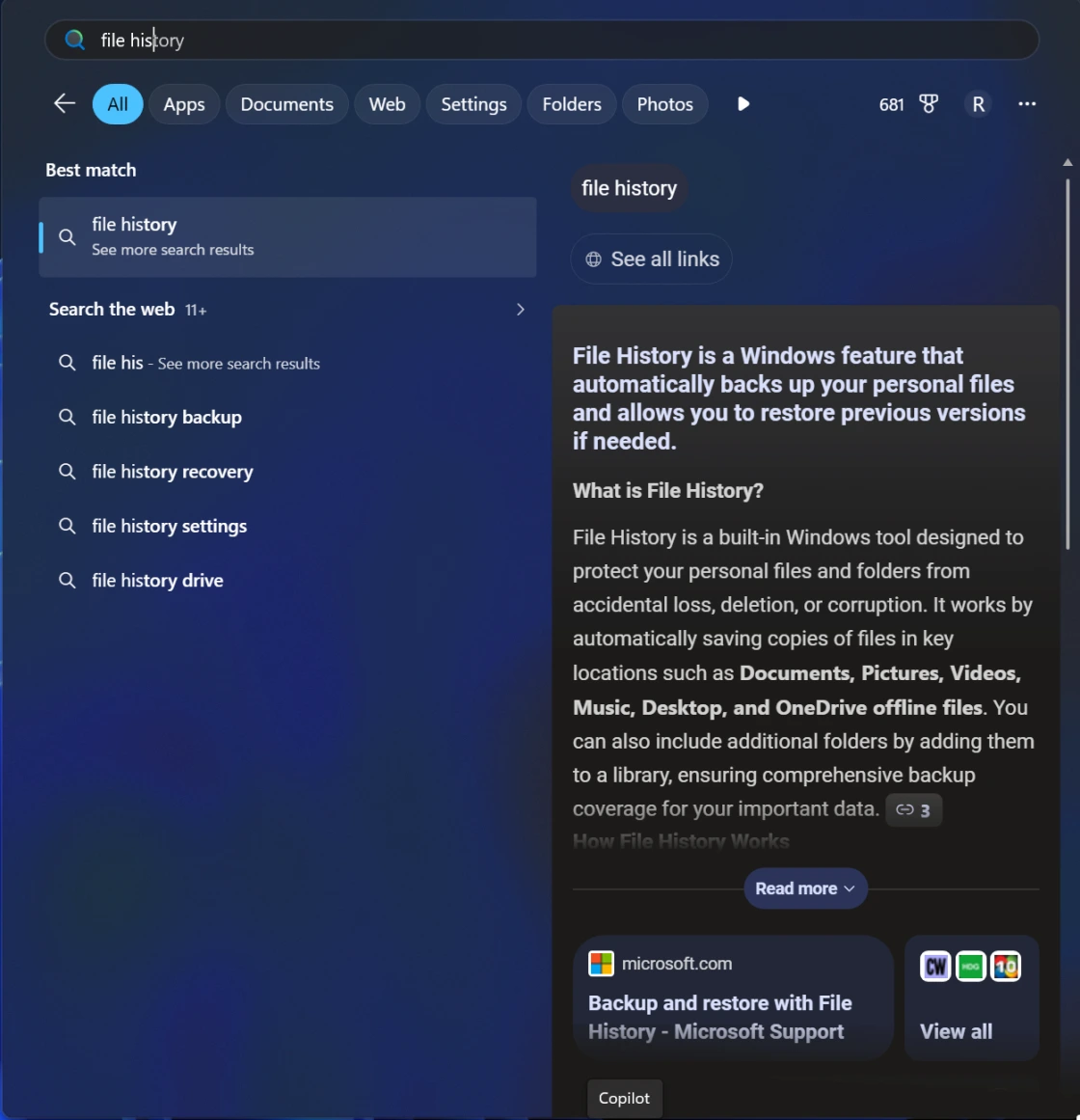
Click Start and type
File History(or go toSettings → System → Storage → Advanced storage settings → Backup optionson Windows 11). Open File History.Choose your drive and turn it on
Click Add a drive (or Select drive) and pick your external drive, then switch File History On.
Let it run
It automatically backs up your personal folders — Documents, Pictures, Desktop, and more — and keeps older versions too. You can set how often it runs; the default is fine for most people.
The thing that trips people up: keep the drive connected and the PC on. File History can only back up while the external drive is plugged in and the computer is turned on. If you only connect the drive now and then — or shut the PC down — your backup quietly falls behind. For dependable protection, leave the drive connected and let the PC stay on (or at least reconnect it regularly). You can confirm it's working in the File History settings, which show the last successful backup time.
Part 2 — OneDrive (your off-site copy)
Open OneDrive and sign in
OneDrive comes built into Windows. Click the cloud icon near the clock (or search
OneDrive) and sign in with your Microsoft account.Back up your key folders
In OneDrive settings choose Manage backup, then turn on Desktop, Documents, and Pictures. Those folders are now kept safely off-site and stay in sync.
Check your storage
The free tier is 5 GB — often not enough. A Microsoft 365 subscription includes 1 TB, which covers most people with room to spare. Not sure? I can help you decide.
What about backing up the whole computer? File History and OneDrive protect your files — which is what most people need. There's also a more advanced option, a full system image or drive clone, that captures the entire PC (Windows, programs, and all) so a dead machine can be brought back exactly as it was. It's genuinely useful in special cases — for example, keeping an irreplaceable older system running — but it's case-by-case and not really a do-it-yourself task. If you think you might need it, let's talk it through.
Part 3 — Prove it works (restore a file)
A backup isn't real until you've gotten a file back and opened it. Don't skip this.
Open File History restore
Search
Restore your files with File Historyfrom the Start menu.Find a file and restore it
Browse to a file, use the arrows to pick a version, and click the green Restore button. (You can also right-click any file → Properties → Previous Versions.)
Open it and confirm it works
Actually open the restored file and make sure it's complete and works — that's the only real proof. Do this now, and check again every so often.
Keep it healthy
Keep the external drive connected (or plug it in regularly so backups stay current), and glance at OneDrive now and then to confirm it shows "Up to date." Re-test a restore from time to time — backups can fail quietly, and a quick check is your early warning.
Want me to set it up?
If you'd rather have it handled, this is routine work for me — File History, the right OneDrive or Microsoft 365 plan, and a safe, automatic routine — and I'll document exactly how it's configured. And if your situation really does call for a full system image, that's a conversation I'm glad to have. Just get in touch.