If you've ever said your computer "has 500 gigabytes of memory," you're in very good company — almost everyone blends the two big numbers together. But they're completely different things, and once you can tell them apart, a lot of everyday computer behavior suddenly makes sense: why unsaved work vanishes in a power cut, why having too much open slows everything to a crawl, and which upgrade is actually worth paying for.
Two numbers, two very different jobs
Every computer has two kinds of "space" inside it, and they get muddled for one simple reason: both are measured in the same strange-sounding units — megabytes (MB), gigabytes (GB), and terabytes (TB). But they do completely different jobs. One is storage — the drive, where everything is kept. The other is memory, properly called Random Access Memory (RAM) — the space the computer actually works in. We'll take them one at a time, then put them side by side.
But first: those strange words — what do they actually mean? The prefixes mega-, giga-, and tera- are mostly Greek in origin, and there's even a quirk where a "kilobyte" isn't quite 1,000. If you're curious, we've got a whole short lesson on those size words.
Storage: the filing cabinet
Storage is the drive — the hard drive or SSD you can read all about in how your drive stores data. Its job is to keep everything for the long haul: your documents, photos, music, the programs you install, and even the operating system itself. Crucially, it holds onto all of that whether the power is on or off. Turn the computer off for a month, come back, and everything is exactly where you left it.
Storage is the big number — usually hundreds of gigabytes to a few terabytes (256 GB, 500 GB, 1 TB, 2 TB). So when someone tells me their computer "has 500 GB," that's almost always the storage they're describing.
Think of storage as a big filing cabinet. Everything you own is filed away in it, neatly kept, and it stays there whether the office lights are on or off.
Memory (RAM): the desk you work on
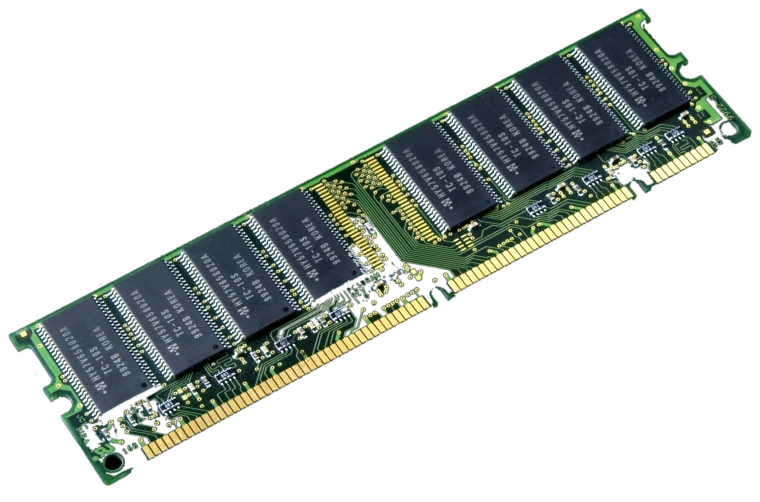
RAM stands for Random Access Memory, but you can just think of it as the computer's working space — the spot where it actually does things. When you're using a program, the computer needs somewhere fast to spread out the work, and that's RAM.
Two things make RAM completely different from storage. First, it's small — typically 8, 16, 32, or 64 GB, not hundreds (high-end machines can carry more — a maxed-out MacBook Pro can hold 128 GB). Second — and this is the big one — it's wiped clean every time the power goes off. RAM only ever holds what you're using right this moment.
Think of RAM as your desk. To work on something, you take it out of the filing cabinet and spread it out on the desk where you can actually use it. The desk is fast to reach and it's where the real work happens — but there's only so much room on it, and at the end of the day the desk gets cleared off completely.
Side by side
Here's the whole difference in one place:
| Memory (RAM) | Storage (the drive) | |
|---|---|---|
| What it's for | Your working space, right now | Keeping everything for the long haul |
| The analogy | Your desk | A filing cabinet |
| What it holds | Only what's open this moment | All your files, photos, programs & the system |
| Keeps data with the power off? | No — cleared every shutdown | Yes — stays put for years |
| Typical size | 8 – 64 GB and up | 256 GB* – 2 TB and up |
| Speed | Extremely fast | Slower (even a quick SSD) |
| More of it lets you… | Run more at once without slowing down | Store more stuff |
* Avoid buying a computer with only 256 GB of storage. These days the operating system and a couple of programs can use up most of that space by themselves, leaving you very little room for your own files.
How they work together: open, work, save
Here's the part that ties it all together. When you open a file or launch a program, the computer fetches it from the filing cabinet (storage) and lays a copy out on the desk (RAM) so it can work with it quickly. As you type and edit, you're changing the copy on the desk. When you click Save, the computer files that updated copy back into the cabinet for safekeeping.
That simple open → work → save cycle explains the next two things people run into all the time.
This is why a power cut loses unsaved work. Anything you hadn't saved yet was only sitting on the desk (RAM) — and the desk is wiped the instant the power stops. Whatever you'd already saved is safe in the cabinet (the drive). That's the whole reason we nag you to save early and save often — and why a backup protects the cabinet itself.
Why having too much open slows things down
A small desk fills up fast. When you've got a dozen browser tabs, email, a couple of programs, and a big photo all open at once, the desk (RAM) runs out of room. So the computer starts shuffling papers back and forth between the desk and the cabinet to make space — and reaching into the cabinet is far slower than working on the desk, even with a quick SSD. That constant shuffling is exactly what you feel when a machine with "too much open" turns sluggish.
This is also why adding more RAM is often the fix for a computer that bogs down when you multitask: a bigger desk means it can keep more spread out at once without all that shuffling. Note that this is a different problem from running low on storage — a full cabinet and a crowded desk are not the same thing.
How to read your own two numbers
The quickest way to tell which number is which is the size: RAM is small (single or low double-digit GB), storage is big (hundreds of GB or terabytes). So "500 GB" is the cabinet, and "16 GB" is the desk. Here's where to find both on your own computer:
On a Mac
Click the Apple menu → About This Mac. You'll see Memory (that's your RAM) listed right there; click into More Info → Storage to see how full the drive is.
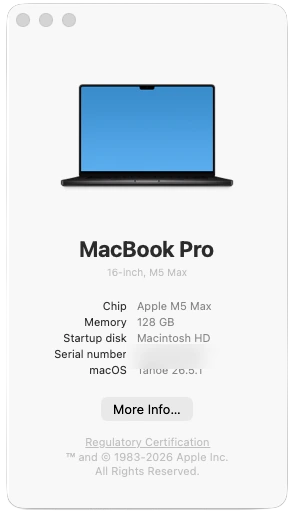
On a Mac, About This Mac shows your Memory right away — that's your RAM (128 GB on this machine). It doesn't list the drive's size here, so click More Info → Storage for that. Screenshot: macOS "About This Mac." On Windows
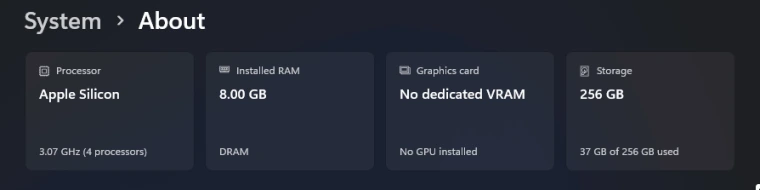
Open Settings → System → About. Look for Installed RAM (the desk). For the drive, go to Settings → System → Storage (the cabinet).
"So which one should I add more of?"
It depends entirely on the symptom — and now you can tell them apart:
- Running out of room for files and photos? That's a full cabinet — you need more storage, or to move some things off.
- Bogs down whenever you have a lot open at once? That's a crowded desk — more RAM usually helps.
- Slow at everything, all the time, on an older machine? The single best fix is usually swapping a spinning hard drive for an SSD — see how drives work for why.
Different problems, different fixes — and knowing which is which can save you from paying for the wrong upgrade.
Not sure what's in your machine — or what it needs?
Whether your computer needs more memory, more storage, or just a tune-up, that's exactly the kind of thing I sort out every week — and I'll tell you honestly which upgrade is worth it and which isn't. Get in touch or call 817-994-7111.