Your files live as physical patterns on a disk — and knowing a little about how helps a lot: it's why drives slow down over time, why "deleting" a file doesn't really erase it, and how to tell when a drive is in trouble. Here's the plain-English version.
How a hard disk drive (HDD) works
A hard disk drive is a sealed metal box with one or more platters inside — smooth, rigid discs coated with billions of microscopic magnetic specks. The platters are stacked on a central post that spins them very fast — thousands of times a minute. Hovering just above each spinning surface, a hair's breadth away and never quite touching, is a read/write head on the end of a small, fast-moving arm — a bit like the needle arm on an old record player.
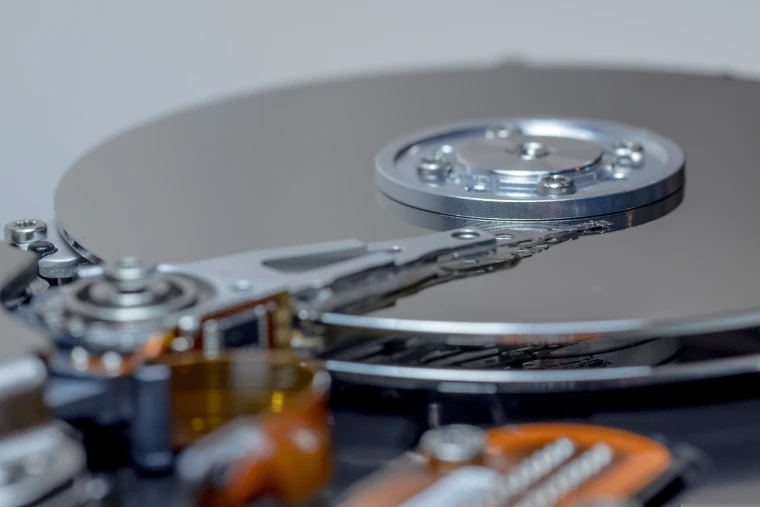
That little head does just two jobs, and together they're the whole trick behind a hard drive:
- Writing — it magnetizes the specks beneath it in a deliberate pattern. That's how your data gets laid down.
- Reading — as the platter spins past, it senses whether each speck is magnetized or not.
That on-or-off difference is all a computer needs. A speck that's magnetized we call a 1 (think "on"); one that isn't, a 0 ("off"). A single 1 or 0 is called a bit — the smallest piece of information a computer has. Line up eight bits in a row and you get a byte — and it's those byte-sized on/off patterns that the computer turns back into the letters, numbers, and symbols that make up your documents, photos, and everything else you save.
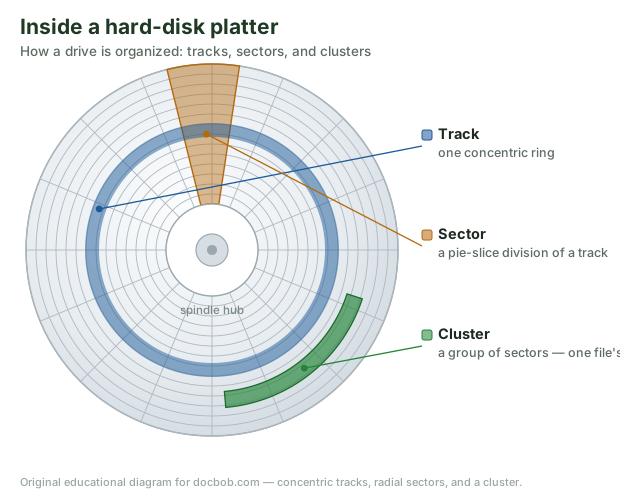
To keep billions of bytes from becoming a jumble, every platter surface is laid out in a tidy grid:
- Tracks — concentric rings, like the lanes on a running track.
- Sectors — each track is sliced into small, equal blocks.
- Clusters — the drive groups those sectors into clusters (you may also hear them called allocation units — same thing; we'll just say "cluster"). A cluster is the smallest amount of space the drive will set aside for a single file. Most files are far bigger than one cluster, so a single document, photo, or song is usually saved across many clusters.
It's worth pausing on what all those moving parts mean for you. Because the head flies so impossibly close to a platter spinning thousands of times a minute, a hard drive is fragile in a way an SSD is not. A knock while it's running — or simple wear after years of spinning — can let the head touch the surface it's supposed to float above, or cause the motor and arm to start failing. And a failing drive usually tells you, out loud.
If a hard drive starts making a repeated clicking or grinding sound, shut the computer down right away. On a drive with spinning platters, that "click of death" means a serious mechanical failure is already underway — the head can't find its place and may be scraping across the very surface your data is written on. Every extra second it stays powered on can destroy more of your files. Don't keep restarting it hoping it'll come back. If you have a backup, you're safe — restore from it. If you don't, power down and get the drive to a professional; see data recovery.
The "bit map" — how the drive keeps track of everything
Laying down the bytes is only half the job. The computer also keeps a couple of running lists that work like the drive's filing system. The most important one is the bit map: a master list of every cluster on the drive that simply records which clusters already hold data and which are still empty and available.
Here's what actually happens the moment you save a file:
The computer checks the bit map
It looks down the list for clusters marked "free" — enough empty space to hold your file.
It writes your file into those clusters
The head magnetizes the specks, byte by byte, into the free clusters it picked.
It updates the bit map
Those clusters get marked "in use," and the computer also writes a directory entry — a little record pointing to exactly which clusters your file lives in, so it can find the file again later.
This simple bit-map system is the key to everything that follows. It explains why a drive slows down as it fills up (next section) — and it holds a surprise: when you delete a file, the computer doesn't scrub the data off the platter. It just marks those clusters "free" in the bit map. The file is still physically sitting there. That's exactly why, if you delete something by accident, you should stop saving anything to that drive — and why lost files can so often be brought back. The full story is in Deleted isn't gone: how recovery works.
Why drives get fragmented — and what "optimizing" does
When a drive is new, files get written into neat, continuous runs of clusters. But over months of saving, deleting, and resizing files, the free space gets scattered into gaps all over the platter. Eventually a single new file won't fit in one continuous run, so the system splits it into pieces tucked wherever there's room — the file becomes fragmented. Now, to read that one file, the head has to hop all over the platter gathering the pieces, and that takes longer. Multiply it across thousands of files and the whole drive feels sluggish.
Defragmenting (or "optimizing") rearranges those scattered pieces so each file's clusters sit together again, and gathers the free space into one place — so reads are fast and quiet again.
Don't defragment an SSD. Defragmenting only helps a spinning hard drive. An SSD has no moving head, gains no speed from it, and the extra writes just use up its lifespan. Windows' built-in Optimize Drives already knows the difference — it defrags HDDs but runs the proper maintenance (TRIM) on SSDs. Just let it do its thing.
SSDs — no moving parts
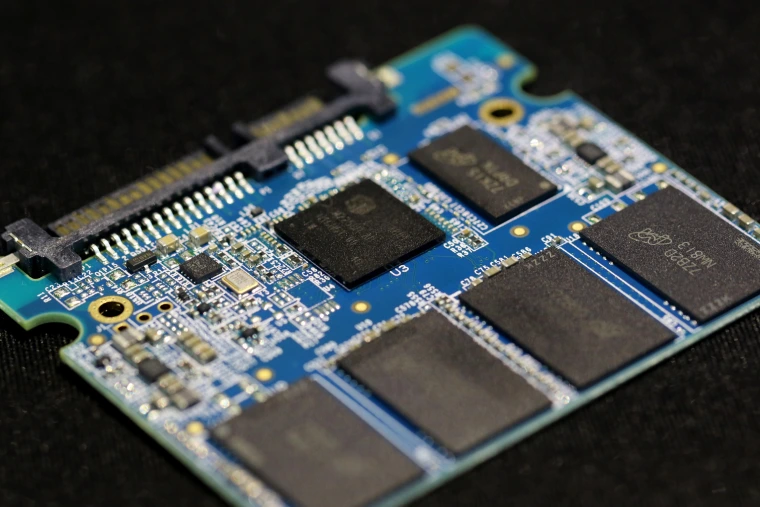
Now forget everything that spins. A solid-state drive (SSD) stores your data a completely different way. Remember the platters whirling around and the head flying just above them? An SSD has none of that — no moving parts at all. Instead it holds those same 1s and 0s in flash memory chips, electronically — much like a tiny, much faster version of the memory card in a camera. That one difference explains almost everything that sets an SSD apart:
- They shrug off bumps and drops. There's no head hovering over a spinning platter to crash into it, so the jolt that would wreck a hard drive usually doesn't faze an SSD.
- They're much faster. There's no waiting for a platter to spin around or a head to seek — any cluster is reached instantly.
- They're silent and use less power. Nothing spins.
How an SSD wears out — and how it fails
An SSD has no spinning platter to crash, but it does wear out in its own quiet way — and it's worth understanding, because it fails very differently from a hard drive.
Remember that an SSD stores each 1 and 0 as a tiny electric charge held inside a microscopic cell. Writing places a charge into the cell; erasing removes it so the cell can be used again. Here's the catch: every erase-and-rewrite leaves a tiny bit of charge behind, like a faint residue. Picture a chalkboard you write on and wipe clean over and over — each wipe leaves a little ghost of chalk, and after thousands of times the board gets harder and harder to write on cleanly.
An SSD cell behaves the same way. Each new write has to "push through" the leftover charge from all the writes before it. For a very long time you'd never notice — but slowly that residue builds up, until one day a cell has too much left behind to write through and it simply can't accept new data. As more and more cells reach that point, the drive eventually can't be written to at all.
The good news when an SSD wears out: your data is still there. A worn-out SSD usually goes read-only — you can't save anything new to it, but you can still read and copy everything off it. So the fix is straightforward: copy your files off to another drive, put in a fresh SSD, and copy them back.
So how long before that happens? Honestly, it's hard to put a number on — it depends on how much you write to the drive, not simply how long you've owned it. For ordinary use — documents, web, photos, the occasional big download — a modern SSD will very likely outlast the rest of the computer. The wear only becomes a real concern under heavy, constant writing.
And the manufacturers have gotten clever about stretching that life. Two tricks do most of the work:
- Wear leveling — rather than hammering the same cells over and over, the drive deliberately spreads your writes evenly across all its cells, so they all age at about the same gentle pace.
- Spare cells in reserve — every SSD keeps a hidden stash of extra cells and quietly swaps a fresh one in as worn ones start to give out, so you never notice the difference.
If an SSD does start misbehaving, copy your files off it right away. SSDs also tend to fail more suddenly than a hard drive — there's no clicking or grinding to warn you — so the moment one acts up, get your data to safety. And the real protection, as always, is a good backup made before anything goes wrong.
Not sure what's in your machine — or whether it's failing?
Whether you've got a spinning hard drive or an SSD, whether it needs optimizing or it's starting to fail, that's exactly the kind of thing I sort out every week. Get in touch or call 817-994-7111 — and if files are already at risk, see how recovery works first.